Adding your own waypoints is great for marking temp breaks, eddies, and other key features you want to target on your trip. You can also use it to save your own honey holes and private GPS spots, making it easy to return to productive areas and build a personalized library of go-to fishing locations over time.
Check out this quick video for a guide on creating, editing, and deleting, or check out the step-by-step guide below.
Having trouble watching the video? Click Here to Watch on YouTube
How to Create a New Waypoint
Step 1:
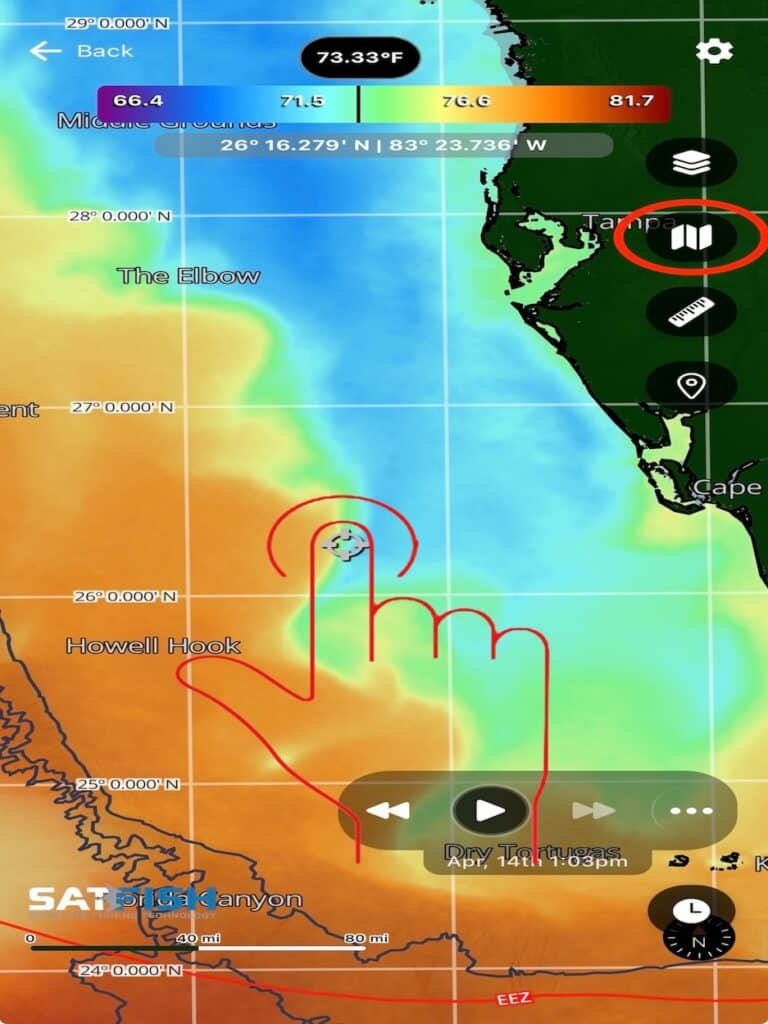
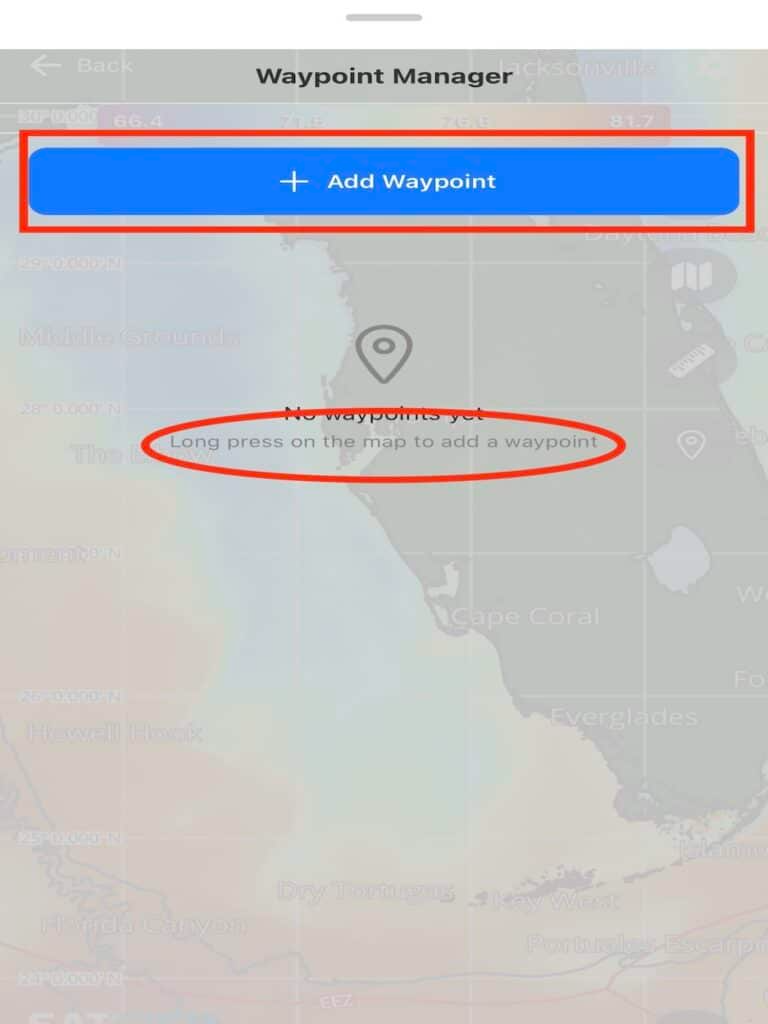
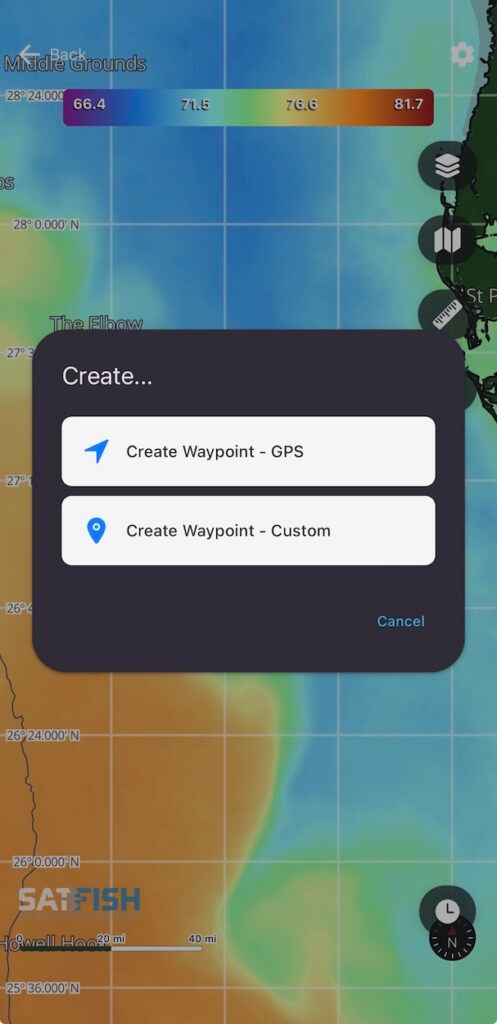
To add a waypoint, you can long-tap anywhere on the map or open the Waypoint Manager using the folded map icon on the right side of the screen and choose “Add a Waypoint.”
Step 2:
GPS Waypoint:
If you’re on the water, you can use the “GPS” option to create a waypoint at your current location, just like the MOB button on your chartplotter.
Custom Waypoint:
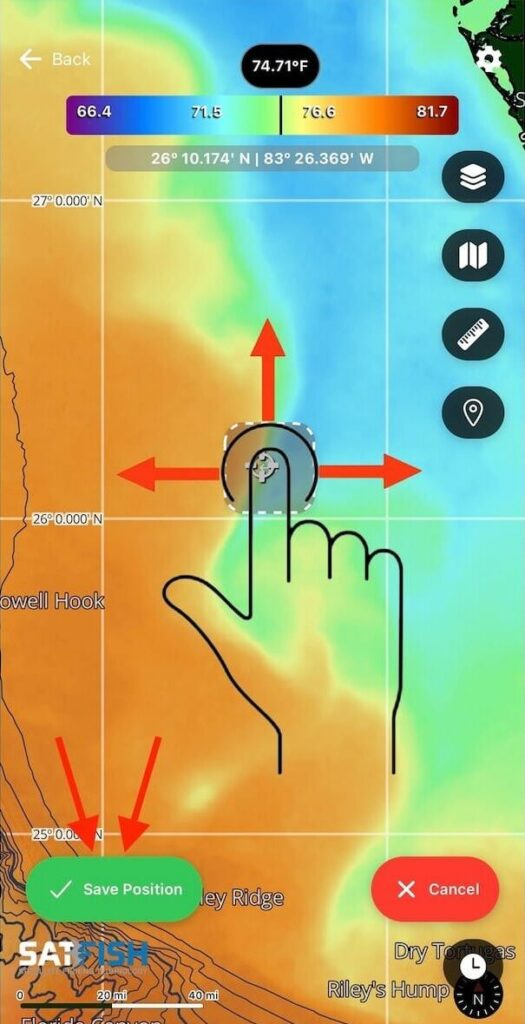
To add a waypoint anywhere on the map, use the “Custom” option. You’ll be able to fine-tune the location you would like on the map, as shown below in step 3.
Step 3:
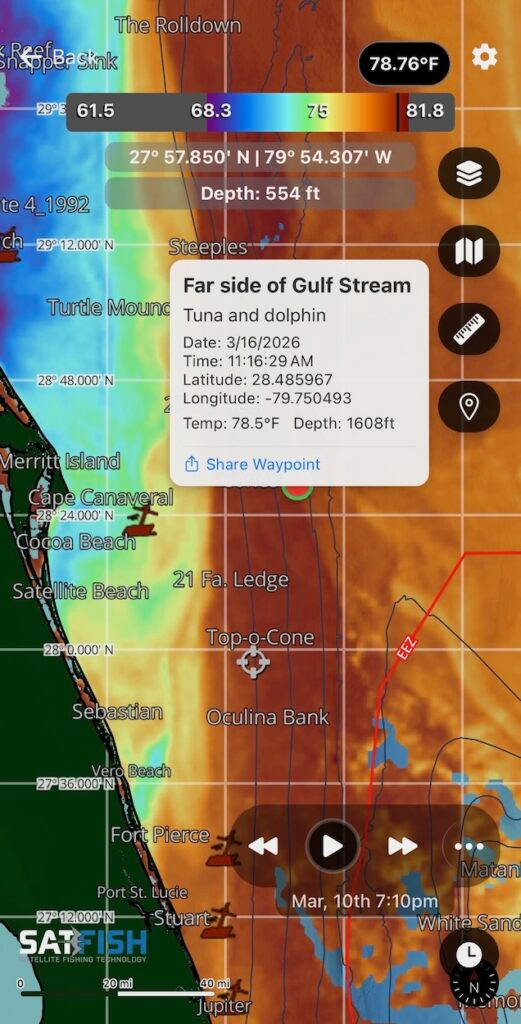
Click and hold while dragging the cursor to adjust the desired location of the waypoint. Once the waypoint is in your desired location, select the green “Save Position” button at the bottom-left of the screen. You can add a name and description you would like the waypoint to show.
How to Edit and Delete Waypoints
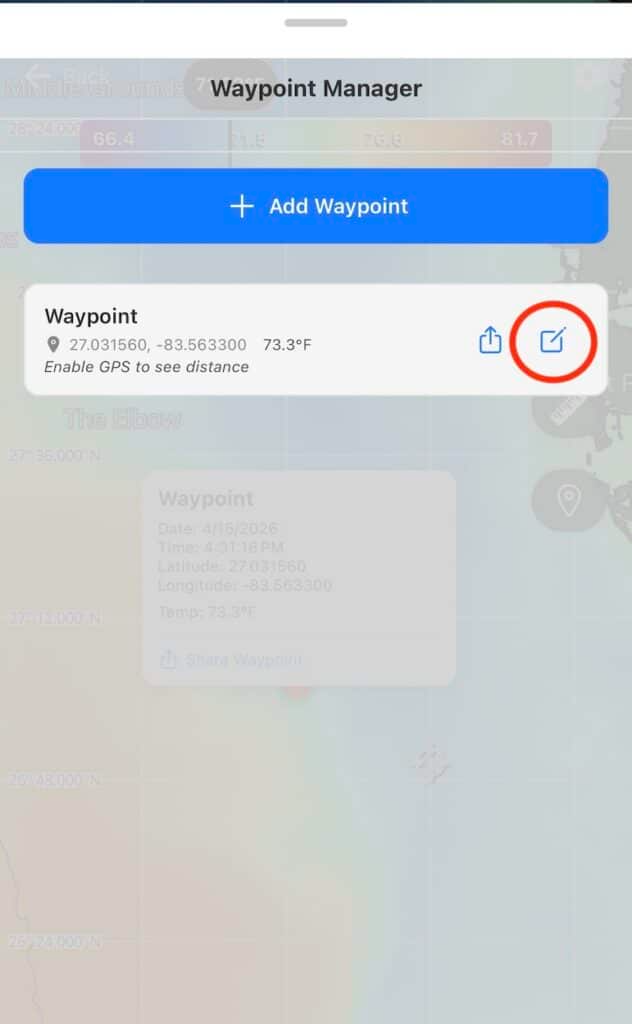
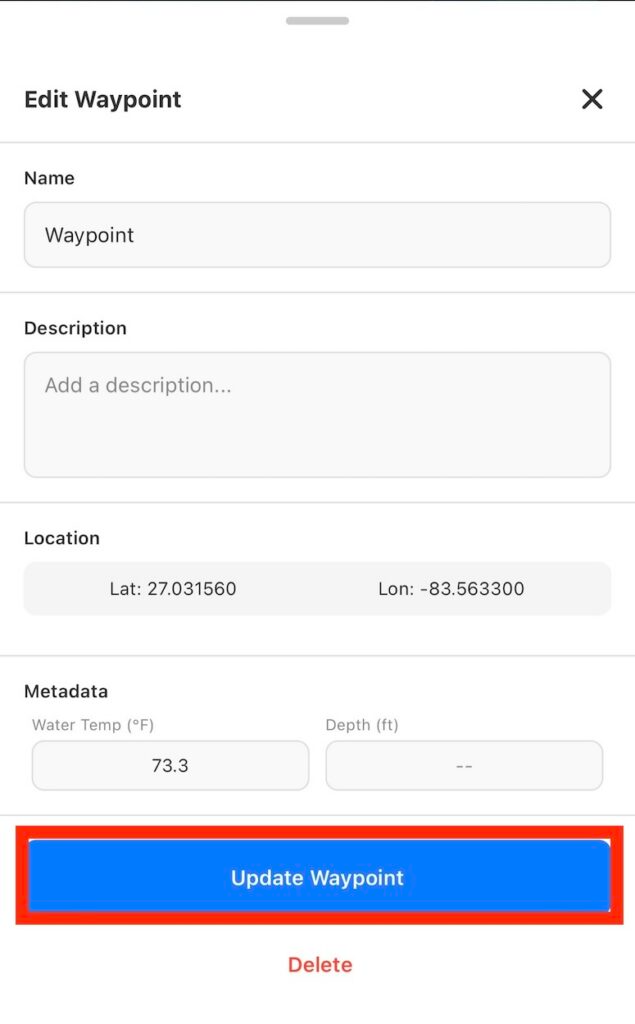
Open the Waypoint Manager by tapping the map icon on the right side of the screen. Once the Waypoint Manager menu appears, click the edit button on the waypoint you would like to edit. From there, you can update its details or permanently delete it.